.png)
Get started - Step 3: Customize logo, terms and colors
Get started with Octany in five steps:
1. Sign up for Octany ✅
2. Choose payment method and get started with the agreements you want ✅
3. Set logo, terms, and colors 👈 We are here now
4. Create the products you want
5. Integrate Octany on your page
Set logo, terms, and colors
Go to Admin

Go to Settings
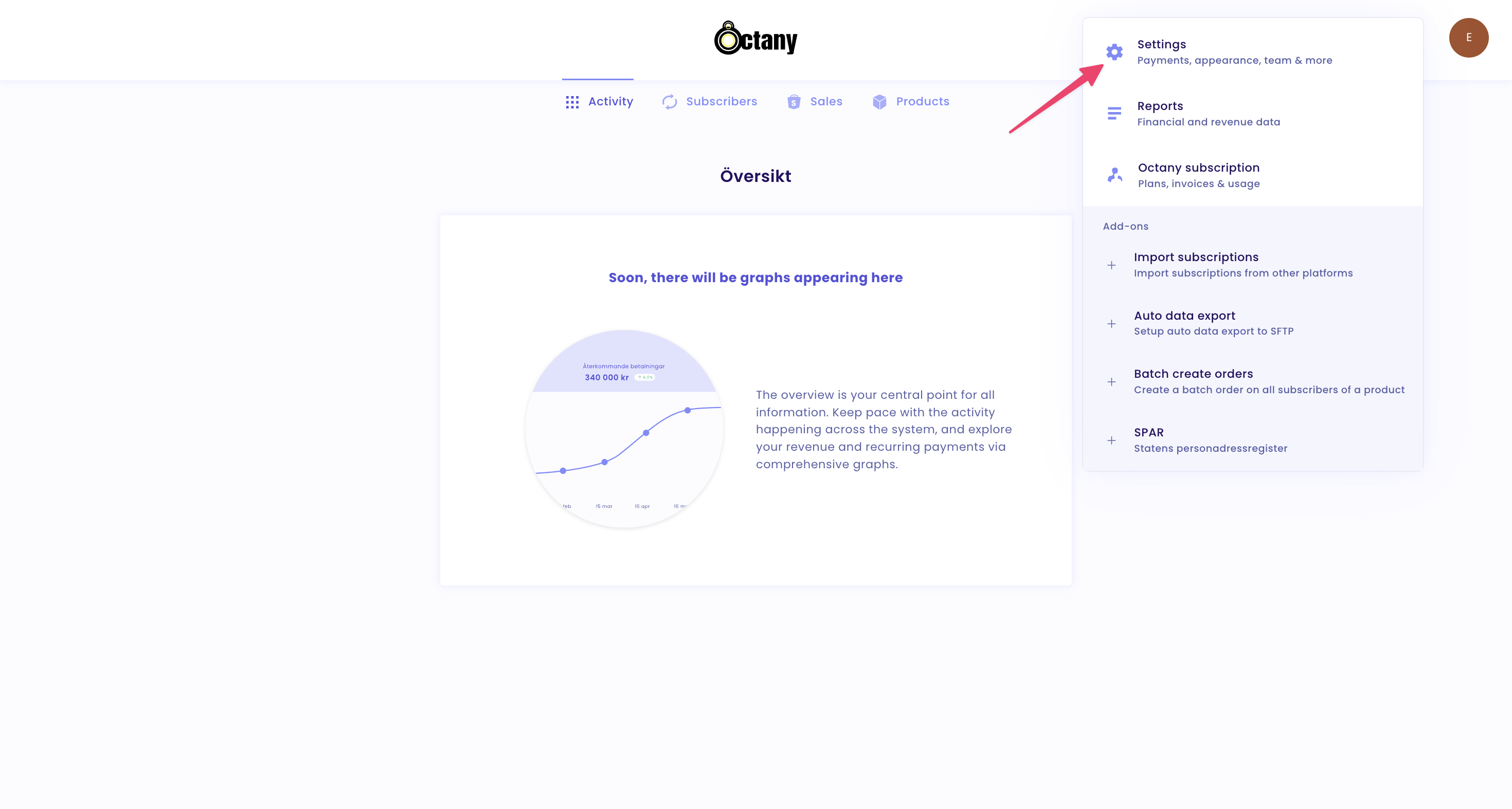
And then to Appearance

Upload your logo
Here you can upload your logo

Your terms
Your terms are the conditions between you and your donors. This ensures that the organization does not use customer or donor data in a way that has not been communicated and approved by the customer/donor. The terms between us as parties are accepted through your first use of the platform and are therefore separate from this.
Without this, your free text window is available for you to write your terms for your donors.
You can enter the terms directly in the box (see the pink arrow).
If you want to insert a link, you can copy it directly, or highlight the text you want to be clickable and insert the link (see the purple arrow).
If you highlight text, you can format it and have headings, bold, italic, etc.

What do one's terms look like? What are others doing in the industry?
Wildhood Foundation paste it in full:

Expo has a short text with a link to their integritypolicy:
You can also combine static text and a link as Ungarelationer.se does:
Change colors
In Appearance, click on Change colors

Here you can see your possible color choices.
There are general colors under "Colors" as well as "Content colors". See below for more information about each category.

Colors - Octany module's colors
The primary color and text on the primary color include Octany's widgets and buttons, that is, the elements that you place on your page to receive gifts, payments, or memberships.
Where are the primary color and text color visible?
The primary color (purple in the images below) is visible on the buttons as background color. While the text on the primary color is the color of the button text (here light yellow).


Content colors - Colors in email
The settings under Content colors include the color choices you make for the email dispatches Octany sends. Here you can change the color of the button in the email, headings, text color, the mini text at the bottom of the email, background color, and the color of the content area.
Set email texts
Octany always sends a confirmation email after each new one-time purchase or at the beginning of a new subscription (e.g., with a new monthly gift, a membership, or similar that is billed repeatedly)
All email send-outs can be edited to align with your brand and tone.
Go to Products

Select the product whose email you want to edit

And then "Purchase confirmations"

Here you can see all the email broadcasts that can be sent from Octany.

Here you can:
- Edit the email
- View the email content
- Send a preview of the email directly to your inbox
- Switch back to Octany's default email
- Disable the email dispatch

If you choose to edit the email, you can edit all the email content and use text formatting on the content

You can also format the content of the email by highlighting the text you wish to format.
Here you can, for example, change headings, bold text, italicize, or insert a link directly in the email.

Inserting dynamic parameters
You can also insert dynamic parameters, which allows you to create personalized emails for each unique donor.
These parameters in the email automatically retrieve the donor's amount, billing interval, and renewal date:

Then this becomes the personal email:

The dynamic parameters that exist are:
| Parameter | Description | Example |
| {{first_name}} | First name | Maria |
| {{last_name}} | Last name | Svensson |
| {{amount}} | Amount | 300 |
| {{interval}} | Billing interval | Månad |
| {{ordinal_day}} | Renewal date | 21 |